
Shipping with 100% accuracy.
Every buyer is auto-assigned a tray the moment they win. Item labels print with the tray number on them, so sorting is done before you pick the item up. Shipping labels come out in pack order. Desktop app for Mac and Windows. No chaos, no guesswork.
Trays assigned automatically
Whatnot shipping starts with a problem most sellers don't realise they have until it bites them: multi-buy customers. A single buyer wins three items across a 90-minute show — maybe item #14, item #47, and item #89. Those three items need to end up in the same parcel, shipped to the same address, with one Whatnot shipping label on it. Traditional workflows rely on you remembering who bought what, which stops working around 50 orders in.
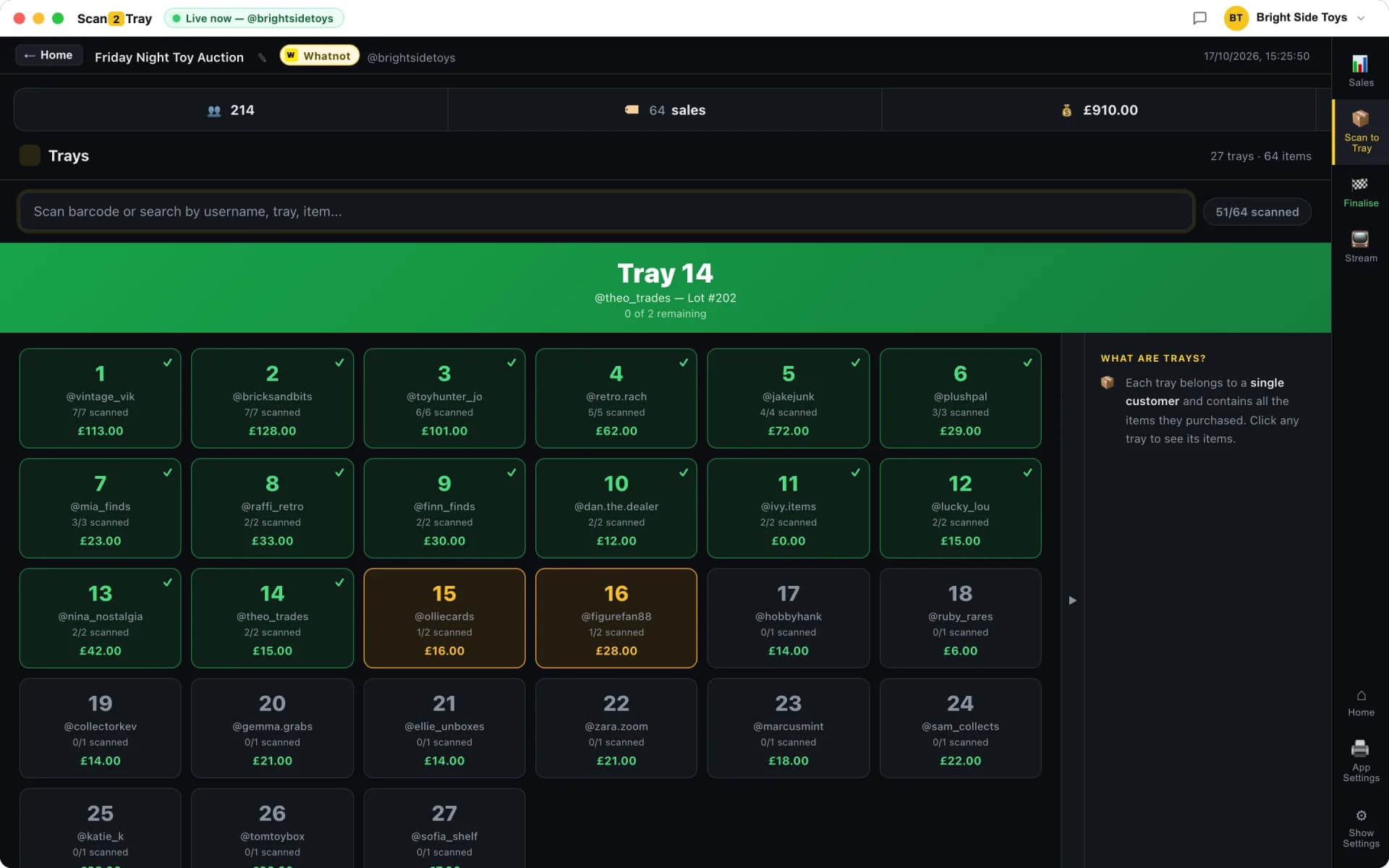
Scan2Tray solves this the moment a buyer wins their first item. The desktop app instantly assigns them a tray number and prints a label with that number on it. Every subsequent item that buyer wins, during the same show, prints with the same tray number. Without you thinking about it, every item a buyer wins ends up in one physical tray — ready to be packed into one parcel with one shipping label.
- Buyer wins item → tray number assigned instantly
- Item labels print with description, buyer username and tray number
- Same buyer's items always land in the same tray, automatically
- Works with any carrier — Royal Mail, UPS, FedEx, USPS, DPD, Evri
- No manual buyer lookup, no mental mapping, no spreadsheets
- Every Whatnot order ID captured for cross-reference at ship time
Why multi-buy customers break manual workflows
At low volume, remembering "Sarah bought three things" is trivial. At 200 items a show with 15-20 multi-buy customers, it's impossible. The first thing that breaks is splitting: item 14 goes into Sarah's tray, item 47 gets put somewhere else by mistake, and by item 89 you've forgotten Sarah is even a customer. Suddenly Sarah gets three separate parcels with three separate shipping costs, or (worse) an incomplete parcel that leads to a refund and a bad review.
How Scan2Tray's tray assignment actually works
The logic is deliberately simple. When a new buyer wins their first item, Scan2Tray assigns the next available tray number (starting at 1). That buyer's username → tray number mapping is remembered for the rest of the show. Every label printed for that buyer uses the same tray number. At the end of the show, tray 1 contains all of the first buyer's items, tray 2 contains all of the second buyer's items, and so on. No configuration needed.
- First-come-first-served tray numbering
- One tray per buyer per show — items never split
- Trays persist through the show — buyer can win items at any time
- Tray numbers reset per show — no confusion across sessions
Shipping labels reordered to match your trays
Whatnot gives you a shipping labels PDF at the end of each show. The order of labels in that PDF is whatever Whatnot decided — usually by order ID or sale time. That order has nothing to do with how you packed, which means printing the PDF and walking the trays is a frustrating hunt: pick up a label, squint at the name, walk to the right tray, stick it on, repeat.
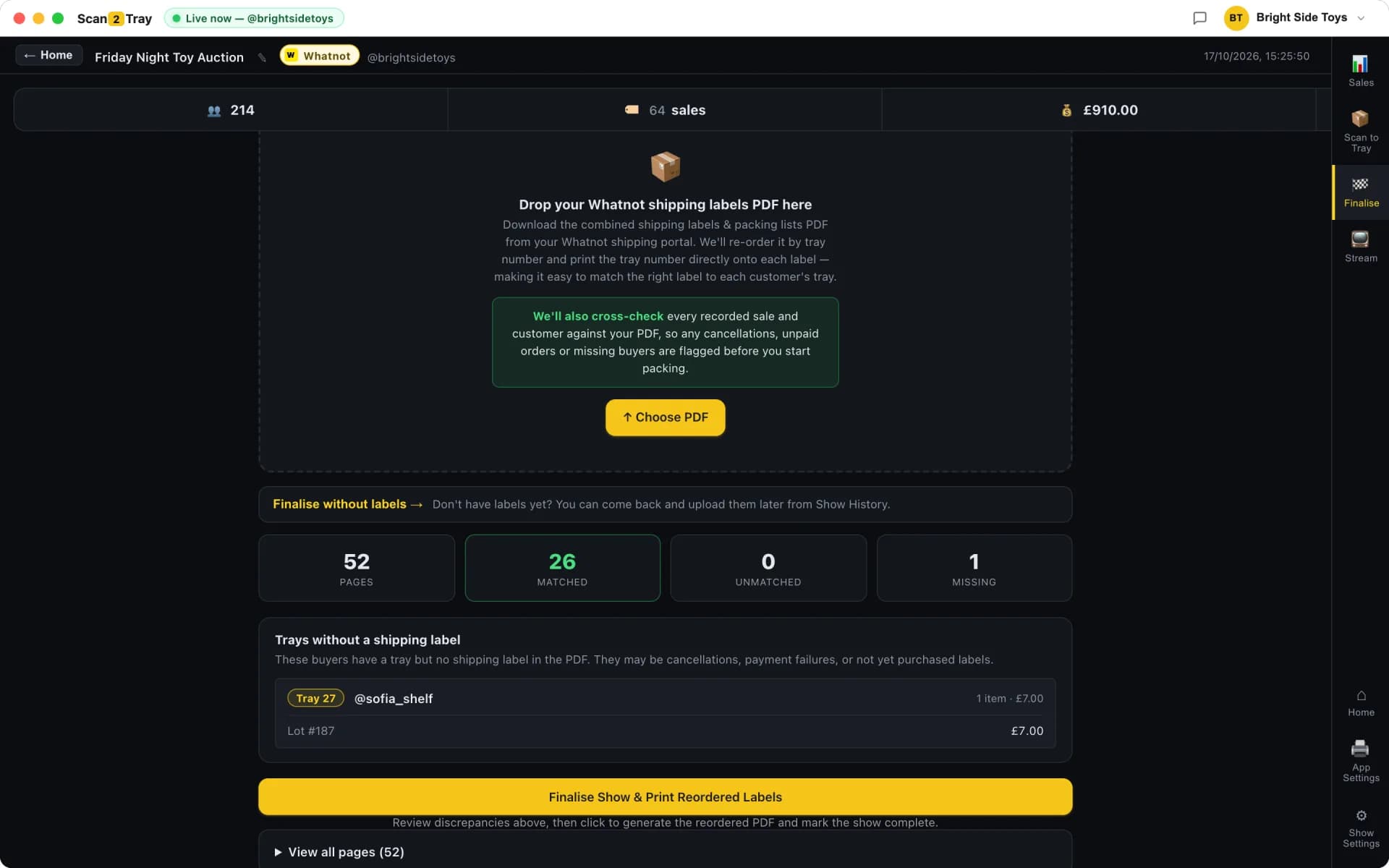
Scan2Tray reorders the entire PDF to match your tray order before you print it. Upload Whatnot's shipping PDF into the desktop app. Scan2Tray reads the buyer names off each label, matches each label to its tray (via the tray assignment it already did during the show), and generates a new PDF in tray order. Print the stack. Grab the top label. Stick it on the tray 1 parcel. Move to tray 2's parcel. Done.
What about shipping labels for trays that only have one item?
Works the same way. A single-item tray is still a tray — it gets a tray number, its item label prints with that number, and when you upload the Whatnot shipping PDF, the shipping label for that buyer's item gets slotted into the correct position in the reordered stack. No different from multi-item trays.
Mismatch detection before you print
Sometimes the Whatnot shipping PDF contains orders Scan2Tray didn't capture (edge cases like an old unshipped order carrying over) or the other way around (a sale that happened but Whatnot hasn't generated a shipping label for yet). Scan2Tray flags these mismatches before you print, so you can resolve them rather than discovering a missing label halfway through packing.
- Unmatched shipping labels surfaced before printing
- Missing shipping labels flagged for Whatnot support follow-up
- Extra orders on the PDF can be skipped or handled manually
- Full reconciliation report available after printing
Simple Mode by default, power modes when you need them
Most Whatnot sellers never leave Simple Mode — label prints, stick on, drop in the tray. Upload Whatnot's shipping PDF, print the reordered stack, walk the shelf, done. For the majority of shops, that's the entire shipping workflow for the rest of the business's life.
For high-volume or team packing, switch on barcode-verified packing: scan the item, scan the tray, Scan2Tray double-checks before the parcel ships. Pre-print barcodes on your stock for rapid sale-to-tray lookup. Run multiple packers on different devices via the free mobile app. All optional, all off by default — and you can start completely free.
Whatnot shipping: the manual way vs Scan2Tray
The shift from hunting for each shipping label to printing a reordered stack is bigger than it sounds — sellers consistently report saving 20-30 minutes per show just at the shipping-label step.
| Manual shipping workflow | Scan2Tray | |
|---|---|---|
| Assign buyers to parcel groups | You remember who bought what | Automatic tray assignment |
| Multi-buy customers | Risk of being split across parcels | Always in the same tray |
| Shipping labels → parcels | Hunt for each one, one at a time | Print stack, walk trays in order |
| Time for 500 shipping labels | 40-60 min of label hunting | ~15 min of walking shelves |
| Missing / extra labels | Discovered during packing | Flagged before printing |
| Labels stuck on wrong parcels | Common at volume | Physically impossible if workflow followed |
Common questions
Does Scan2Tray work with Whatnot's built-in shipping labels?+
Yes. Scan2Tray is designed around Whatnot's built-in shipping system — you use whatever postage Whatnot offers (Royal Mail, Evri, USPS, UPS, etc.), and Scan2Tray handles the reordering of the PDF Whatnot generates. No separate carrier accounts needed.
What carriers does the shipping tool support?+
All of them — Scan2Tray doesn't generate shipping labels, it reorders the ones Whatnot already gives you. So whatever carrier Whatnot offers in your country (Royal Mail, Evri, DPD in the UK; USPS, UPS, FedEx in the US) is supported automatically.
Can I use Scan2Tray with my own shipping software?+
Yes, although most sellers find Whatnot's built-in shipping is already the cheapest option post-Whatnot-discount. If you generate your own shipping labels (e.g. via ShipStation or a carrier portal), you can still use Scan2Tray for the live sale capture and tray assignment — you just skip the PDF reorder step and label parcels yourself in tray order.
How does tray assignment handle buyers who win one item vs many?+
The same way, deliberately. A tray is one physical container per buyer per show. Whether that buyer wins 1 item or 30, they get one tray number, and every item label prints with that number. Single-item trays become single-item parcels; multi-item trays become multi-item parcels.
What happens if I run out of physical trays?+
Most sellers use plastic parts bins, cardboard trays, or dedicated shelf slots — not literal trays. The "tray" is a concept, not a physical product. Scan2Tray tells you which number to use; the physical container can be whatever works in your space. Most sellers have 50-200 of whatever container they've standardised on.
Can I reprint the shipping label stack?+
Yes. The reordered PDF is saved inside Scan2Tray and you can print it again any time — useful if your printer jams halfway through, or if you want to re-run a stack after resolving a mismatch.
Related reading
Whatnot order management
The sale-to-shipped pipeline that the shipping reorder workflow sits on top of.
Whatnot order tracking
How live capture and tray assignment keep every item accounted for.
Whatnot bulk seller tools
Shipping 1,000+ parcels per show — what the reorder workflow looks like at scale.
The silent killer of Whatnot success: customer trust
Why a single mislabelled parcel costs more than a week of marketing.
Start completely free.
Pack real shows end to end — scanning, trays, label printing, the lot — before you pay a penny. Every plan covers Whatnot, TikTok Shop and eBay Live in one subscription. Upgrade only when you outgrow the free allowance.
No card required to start
Run your first couple of shows free and see Scan2Tray work end to end.
Get started — free- Run your first shows on us — no card needed
- Whatnot, TikTok Shop & eBay Live included
- Full live sale capture & auto-assigned trays
- Barcode & shipping label printing
- macOS and Windows apps included
- Upgrade any time as you grow
For regular sellers running shows every week.
Choose Standard- Unlimited shows
- Up to 150 items per show
- Live sale capture & auto label printing
- Revenue tracking & reports
- Priority email support
For high-volume sellers and teams with no limits.
Choose Unlimited- Everything in Standard
- Unlimited items per show
- Unlimited scans
- Advanced modes for rapid sellers
- Export & advanced reports
Prices shown in your local currency. Cancel anytime — your data stays yours.